A Minecraft skin viewer shows a skin file on a 3D model so you can check it before you play. PixelSkinLab is a free Minecraft skin viewer. It checks common file problems, applies repairs you can undo and shows the result before you download.
Sample skin
Drag to rotate · scroll to zoom · click a pixel to read it
Show as the game draws it
Body part layers
SKIN CHECK
Upload a skin to check it
This is our sample skin. It passes every check.Sample skin
Drag a PNG onto the model or click Upload. 64×64, legacy 64×32 and 128×128 files all open.
02
Read the panel
Check the skin size, arm model and listed repairs. You can undo any automatic fix.
03
Look closer
Rotate the model, inspect each layer and compare the result with the flat skin file.
04
Download fixed skin
When the preview looks right, download the repaired PNG.
SHEET No.02 / GAME EDITIONS
Java and Bedrock: what is the same and what is not
Minecraft comes in two editions, and a skin that works in one can look different in the other. The viewer opens both kinds of file, so it helps to know where the editions part ways.
File size. Java Edition takes a 64×64 PNG, or the legacy 64×32 layout. Bedrock Edition takes 64×32, 64×64 and 128×128.
Arm width. Both editions have Classic (4-pixel) and Slim (3-pixel) arms. On Bedrock you choose between the two when you import a custom skin.
Cosmetics. Bedrock has a Character Creator, where skins can use cosmetic items and 3D models. A plain PNG skin is a “Classic Skin” there.
Servers. On Java, a skin comes with a signature, and the game uses it to make sure only skins uploaded through Minecraft’s own services are shown.
What this means for you: the size line in the check panel tells you which edition the file fits. A 128×128 file opens here and rotates like any other, but the Java upload rule lists only 64×64 and 64×32. The viewer does not shrink a 128×128 file for you, so keep a 64×64 version if you plan to use the skin on Java.
SHEET No.03 / WHY IT BREAKS
Why does my skin look wrong in Minecraft?
A skin can look fine in a drawing app and still break in the game. Almost every case comes from one of four causes. To repaint the pixels yourself, open the Minecraft Skin Maker.
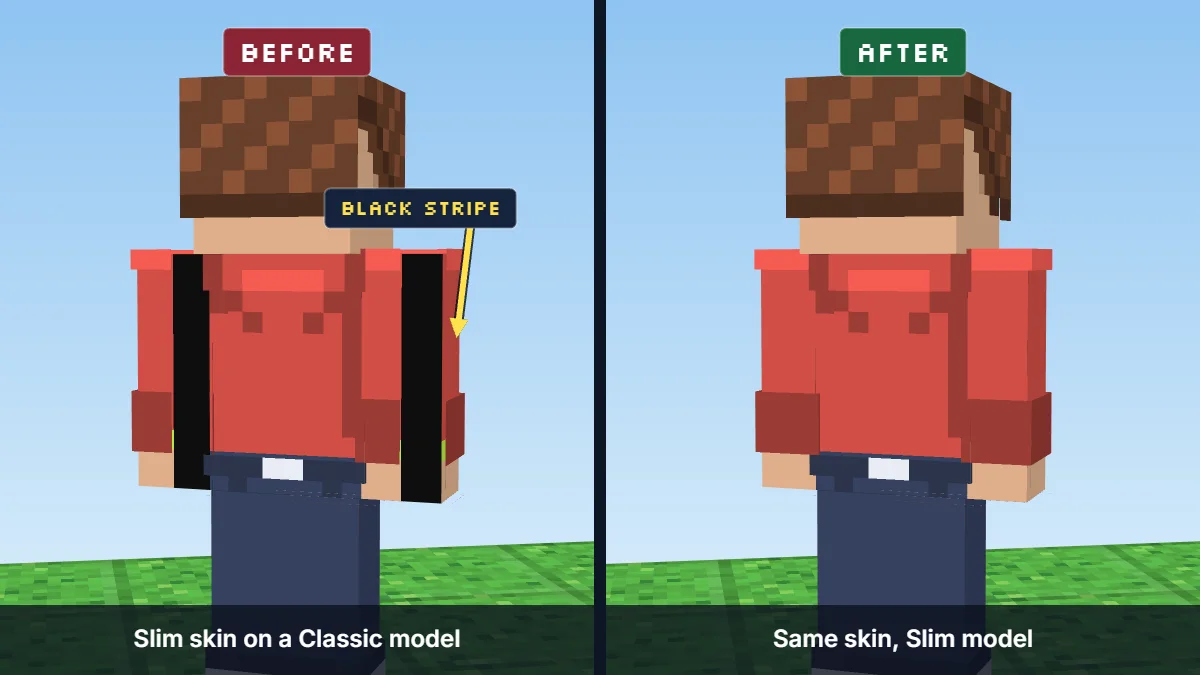
Before / After
Before: Slim skin on a Classic model. After: the matching Slim model. Rendered with PixelSkinLab.
A black stripe down the arms
Minecraft has two arm widths: Classic arms are 4 pixels wide, Slim arms are 3. If you draw for Slim but the game uses Classic, the missing column shows as a black stripe. The viewer spots which width your pixels were drawn for and sets the model to match.
Fix: Choose the matching model or convert the arms, then check the preview again.
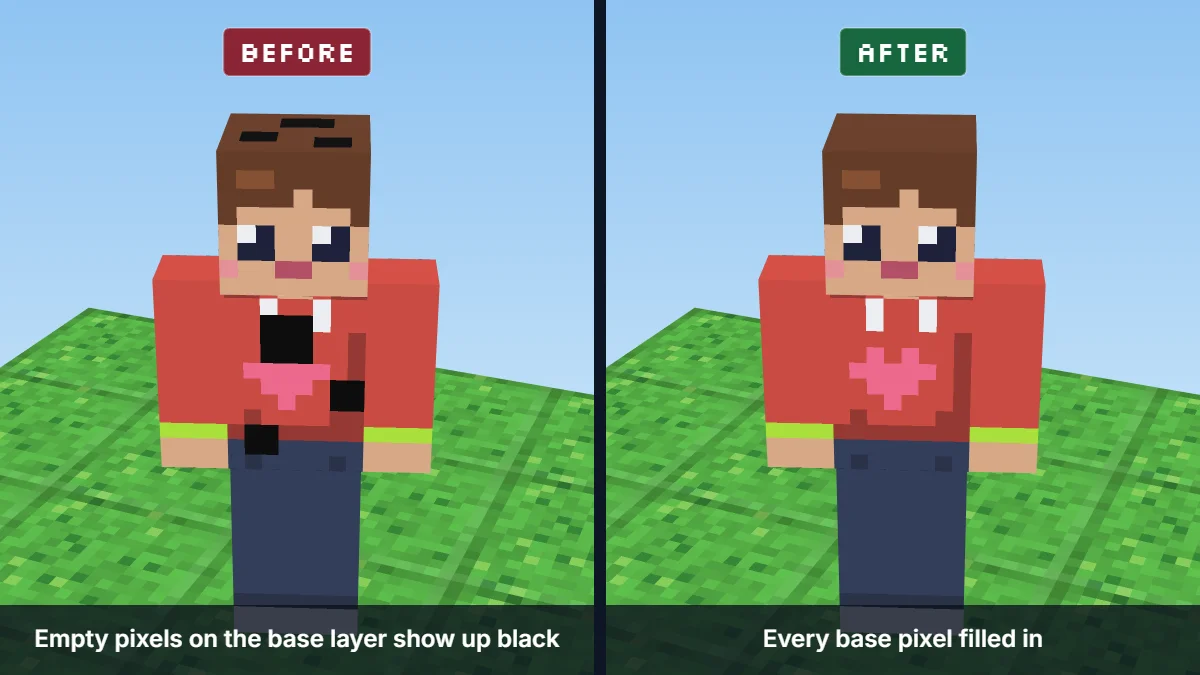
Before / After
Empty base-layer pixels turn black; fill them in. Rendered with PixelSkinLab.
Black holes in the body
The base layer cannot be see-through. Any transparent pixel there turns black in the game. Phone editors and erasers often leave a few. We fill each hole from an opaque four-way neighbor on the same face.
Fix: Undo the automatic fill if you want to paint those pixels yourself.
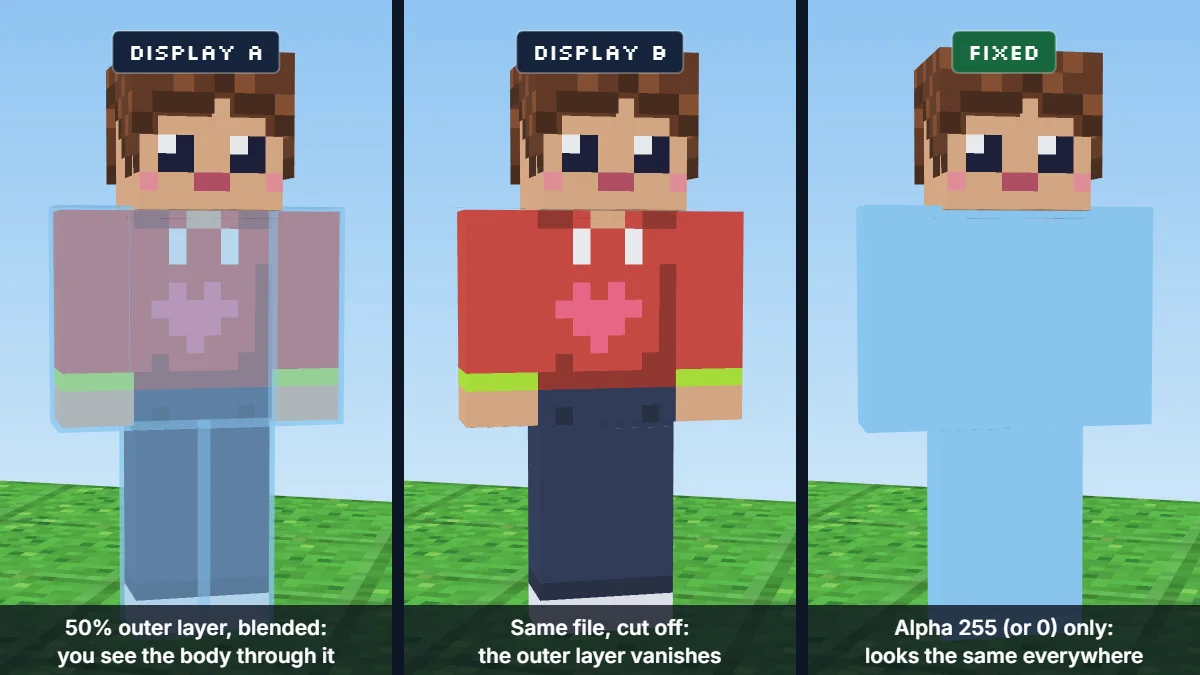
Before / After
A 50% outer layer looks different in different displays; use 0% or 100%. Rendered with PixelSkinLab.
Faded or ghost pixels on the outer layer
Java draws half-clear outer pixels. Bedrock hides pixels at 25/255 opacity or lower. For a skin that looks the same in both, make outer pixels fully solid or fully clear.
Fix: Undo the cleanup one item at a time if you want to keep a soft edge.
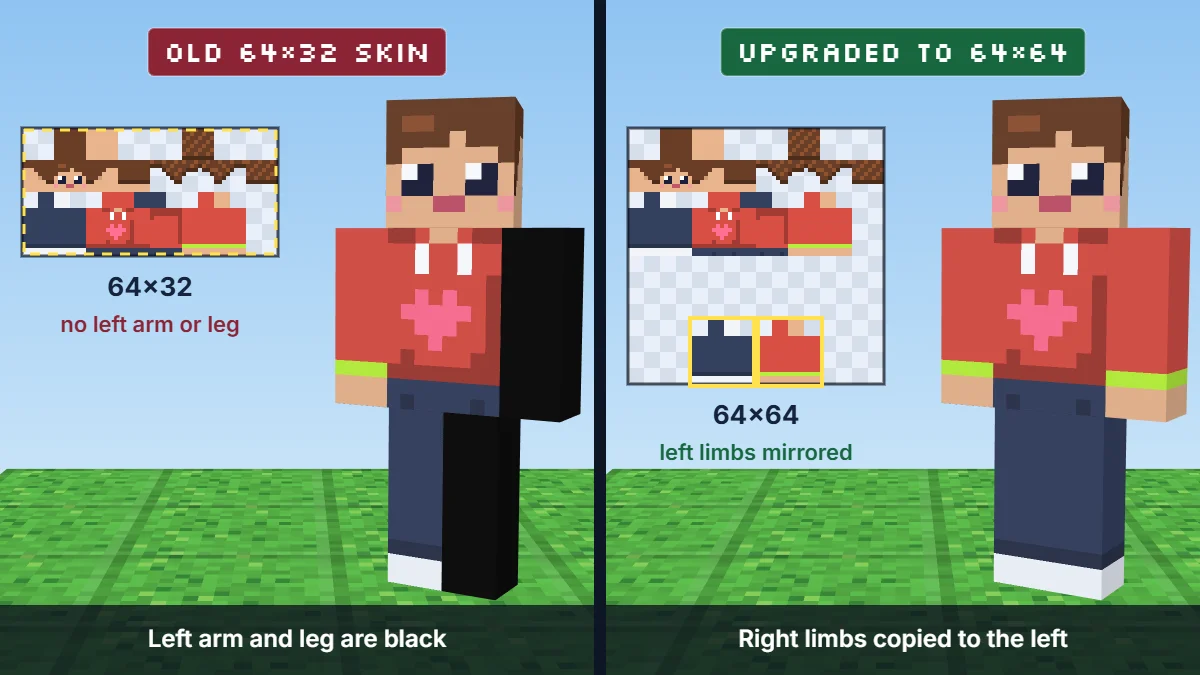
Before / After
Old 64×32 skins have no left limbs until they are upgraded. Rendered with PixelSkinLab.
The wrong file size
Java Edition uses 64×64. Old 64×32 skins have no separate left arm, left leg or outer layer on the body. 128×128 files come from Bedrock-style editors. We convert old files to 64×64 by mirroring the right limbs, and flag high-resolution files so you know they need the matching edition.
Fix: The viewer upgrades legacy skins automatically and flags 128×128 files for you.
SHEET No.04 / IN-GAME DIFFERENCES
When the file is fine but the game still shows something else
The four problems above live inside the PNG. Sometimes the file is perfectly clean and the game still shows an old or different skin. If the viewer reports no problems, look here next.
The skin has not refreshed
You changed your skin, but you still see the old one. The server may control the skin, or your game may need to refresh.
Try these steps in order:
Wait a few minutes.
Fully close the game and the launcher, then start them again.
Join a single-player world and a server, and compare. If the skin is right in one and wrong in the other, the cause is not your file.
Check the file once more in the viewer, so you know the PNG itself is not the cause.
The server controls the skin
On a server, the skin you see for a player may differ from the one in their launcher. Servers can use plugins to set skins. SkinsRestorer lets players change their Java skin on a server, and lets owners offer custom skins and decide who may change them.
Two points from its documentation are worth knowing:
A proxy network needs the plugin on the proxy and on every backend server. If one backend lacks it, a player can look right on one server and wrong on the next.
The skin a player sees and the skin they saved can differ.
Players in offline mode cannot use custom skins at all without mods.
If you are a player, ask the staff which skin plugin the server uses and how to refresh your skin there.
Capes and OptiFine
A cape can make a correct skin look wrong because it is not part of the skin PNG. If an OptiFine cape does not show, check these four things:
The username matches exactly, including capital letters.
OptiFine is installed properly.
Show Capes is on in video settings.
A firewall or router is not blocking the OptiFine server. Some PvP clients also hide OptiFine capes.
The viewer shows the skin only. If your skin looks right here and the cape is missing in the game, the cause is on the cape side.
SHEET No.05 / ARM MODELS
Convert a skin between Slim and Classic
Want your skin on the other arm model? Press Convert to Classic or Convert to Slim. Going to Classic, we widen each arm by one pixel column and fill it from the colours beside it. Going to Slim, we remove one column from the middle of each arm so the shoulders and hands stay intact. Check the arms in 3D, touch them up in the skin maker if needed, then download.
This is also how you turn an Alex-style skin into a Steve-style one, and back. Changing the model alone can leave pixels in the wrong columns; the convert buttons reshape the arm texture as well as changing the preview model.
SHEET No.06 / ARM MODELS
Classic or Slim: how to tell by eye
You do not need the viewer to see which arm width a skin was drawn for. Look at the arm on the flat sheet. A Classic arm is 4 pixels wide, a Slim arm is 3. On a Slim skin the game ignores the rightmost pixels of the arm image.
The game’s own default skins come in both widths, so neither one is “the normal one”.
If you are unsure, trust the check panel. Next to Arm model it shows what it detected: Classic, Slim or unsure. If that does not match the model you picked, it tells you. Then compare the arms from the front and the side. If they look thinner or wider than you drew them, switch the arm model and look again.
Classic · 4 columns
Slim · 3 columns
SHEET No.07 / FILE RULES
Skin file rules at a glance
These are the checks that matter when you move a skin into Minecraft. The viewer checks the file you chose, tells you what it changed, and keeps each automatic repair reversible.
Rule
What happens if you break it
Fixed automatically
Base-layer pixels are opaque
Transparent pixels appear black in game view
Transparent pixels with a same-face neighbor can be filled
Outer layer solid or clear for a matching look
Java draws half-clear outer pixels. Bedrock hides pixels at 25/255 opacity or lower. For a skin that looks the same in both, make outer pixels fully solid or fully clear.
Half-clear pixels can be rounded up or down
Arm width matches the chosen model
The 3D arm preview can look wrong
The detected model is selected; arm conversion is optional
Select the detected Classic or Slim model for the preview.
Yes. Select another model; pixel conversion is separate.
Fully transparent pixels on a base-layer face
Fill from an opaque four-way neighbor on the same face; pixels without a neighbor stay for manual repair.
Yes. Toggle the hole fix off.
Partly transparent skin pixels
Make base-layer pixels opaque. For outer pixels, set alpha to 255 at 128 or above, otherwise 0.
Yes. Toggle the transparency fix off.
Legacy 64×32 layout
Expand to 64×64 and mirror the right arm and leg into the left side.
Yes. Undo keeps the original 64×32 for download.
Each box in the PNG wraps one body part. The skin layout shows which box is the head, an arm or a leg. Keep that map nearby if you want to repaint a single face in a separate editor.
A 128×128 texture can still be opened and inspected here, but the Java launcher expects a 64×64 file. A 64×32 skin is different: it is an older layout with missing left-side and outer-layer areas, so the viewer makes a 64×64 copy by mirroring the right limbs.
SHEET No.08 / TRANSPARENCY
Transparency, layer by layer
Java draws half-clear outer pixels. Bedrock hides pixels at 25/255 opacity or lower. For a skin that looks the same in both, make outer pixels fully solid or fully clear. Minecraft Wiki: Skin · checked 2026-11-14.
Base layer. The checker finds fully transparent base-layer pixels and fills them when an opaque pixel touches the same face. The game view shows transparent base pixels as black. Minecraft Wiki: Skin
SHEET No.09 / OLDER SKINS
Old 64×32 skins, limb by limb
Java 1.8 let the left and right arms and legs be edited on their own. A skin made before that has one arm and one leg in the file, and the game uses them for both sides.
When the viewer opens a 64×32 file it builds a 64×64 version. The left arm and left leg become copies of the right ones. If you want a different left sleeve or a scar on one leg, repaint that side. The check panel tells you when it did this, and Undo keeps the original 64×32 file for download.
The outer layer is also new in 64×64. An old skin has no jacket, sleeve or trouser layer, so those areas start empty. That is normal, and the viewer does not treat empty outer-layer pixels as a problem.
SHEET No.10 / WHEN TO CHECK
When to check a skin before you use it
A quick check is useful whenever the file has passed through a new editor, a different game edition or another person’s hands. Drop it in, review the listed fixes and download the copy you want to keep.
After editing on a phone or tablet.
Touch editors often leave stray transparent pixels on the base layer. Check for holes before you upload.
When you download a skin from a gallery site.
Many uploads were drawn for the other arm width. Look at the arms first.
When you move a skin between Bedrock and Java.
Sizes and layers differ. Upload it here, check the size line, and download the 64×64 version for Java.
Before a server event or a recording.
A black stripe is hard to unsee on camera. Turn on Show as the game draws it and spin the model once.
When you paid someone to draw a skin.
Check the file before you approve it, so any fix happens while the artist is still on the job.
When you reuse a very old skin.
Skins from before 2014 are often 64×32. The viewer converts them and shows you the mirrored limbs so you can repaint one side.
SHEET No.11 / LOOKING AT SKINS
Looking at someone else’s skin
You can type a Java Edition username into the viewer to load that player’s skin. Many people open a viewer to look at a skin that is not theirs. A few ways to use that well:
Borrow a colour palette, not the skin. Click the main areas of a skin you like. The readout under the model gives the exact colour of the pixel, and you can copy it as a hex code for hair, shirt and trim.
Study how the outer layer is used. Turn the head outer, body outer and sleeve outer buttons off, one at a time. You see what sits on the base layer and what was added on top, which is the quickest way to learn how a layered skin is built.
Check a skin before you send it on. If a friend sends you a PNG, view it first. A skin is a plain image file with no code in it.
Check a skin you were given for a roleplay or event. Look at it from all four sides and from above. The top of the head and the soles of the feet are easy to miss in a flat picture.
Name lookup is Java Edition only. The username is sent to Minecraft public profile services to retrieve the skin; no password is needed. Successful results are cached for up to 30 minutes so repeat lookups are fast. We do not save usernames. Bedrock skins are not publicly searchable, so upload a PNG instead.
Respect the artist. A skin you find online may or may not be free to reuse, so check the creator’s terms before you upload it as your own or put it on a server.
SHEET No.12 / TEAM REVIEW
Checking skins for a server or a team
Staff who run a server, a club or a content team often need to review skins before an event. A short routine saves time:
Size. Read the size line in the check panel. For Java, you want 64×64.
Arms. Is the arm width the one the player will pick in the launcher?
Holes. Are there black spots on the body, head or feet?
Outer layer. Does the hat or jacket hide the face, or work as intended?
Four sides and the top. Spin once on the dark background and once on the light one.
Your own rules. What a skin may show is a matter for your server rules. The viewer checks only the file.
If you ask players to send a skin, ask for the PNG itself rather than a screenshot. A screenshot cannot show a hole or a half-clear pixel.
SHEET No.13 / QUICK CHECK
A 60-second skin check
Short on time? This is the shortest check that catches most problems:
Drop the PNG on the viewer.
Read the heading of the check panel. It tells you how many problems it found.
Keep Show as the game draws it on. Holes show up black, as they do in the game. To see where a problem is, press Show on model. The pixels flash red for a moment.
Spin the model once: front, back, then both sides.
If you are happy, press Download fixed skin.
SHEET No.14 / LOOK CLOSER
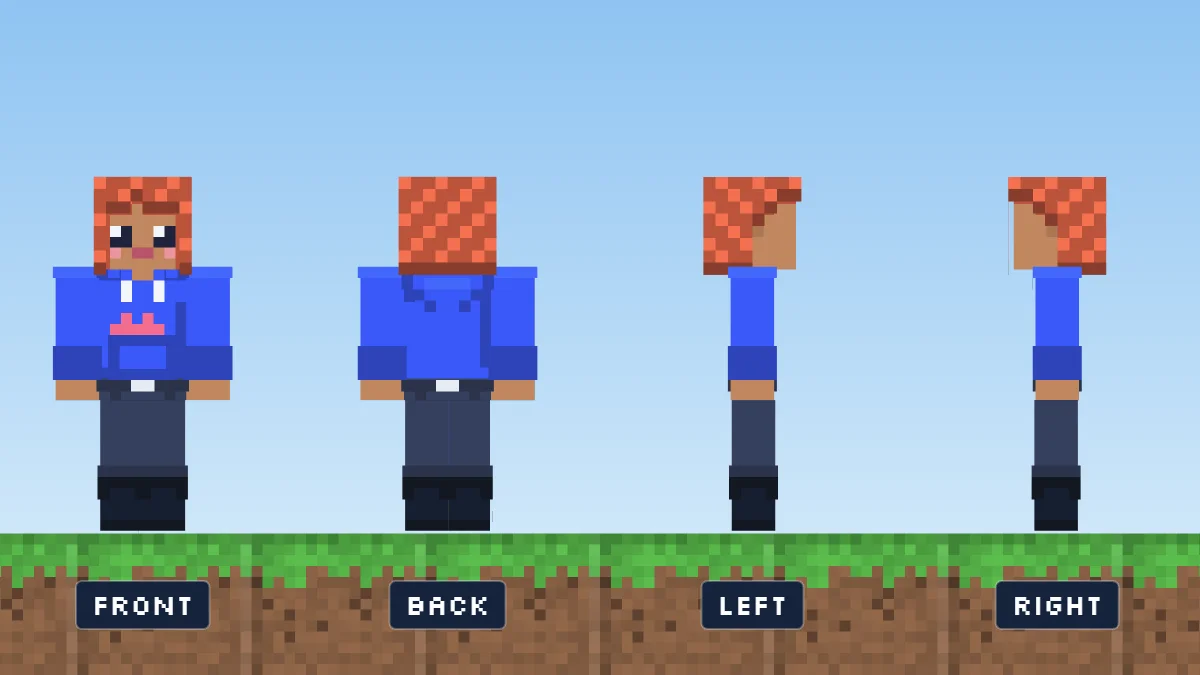
What the viewer shows that a plain preview does not
Front, back, left and right views of one skin. Rendered with PixelSkinLab.
Game view.
One switch shows the skin with the game’s rules applied – holes in black and wrong arms with the stripe. Press Show on model to make the problem pixels flash red.
Layer control per part.
Hide the jacket only, or one sleeve, to see what is under it.
Three backgrounds.
Dark, light and grass, because a skin that works on white can vanish on dark.
Eyedropper.
Click a visible pixel in the 3D model or the flat sheet to read its colour, layer and body part. Copy the hex value for your notes.
SHEET No.15 / FAQ
FAQ
Only the broken pixels change. Every fix is listed and can be undone.
Look at the arm area on the sheet: Classic arms use 4 columns, Slim arms use 3. The viewer reads this for you and shows the result in the check panel.
The game may use a different arm model. A black stripe can appear when the skin was drawn for another arm width. Choose the model shown in our check panel. Slim arms use 3 pixels; Classic arms use 4.
Yes. A 128×128 PNG opens here and Bedrock accepts it. Java uses 64×64 or legacy 64×32.
Yes, for Java Edition. Type the username in the field above the viewer. Bedrock skins are not publicly searchable, so upload the PNG.
The server may use a plugin to set skins, or your client may not have refreshed. Wait a few minutes, restart the game and ask the server staff which skin plugin they use.
No. The viewer shows the skin file only; a cape is separate.
Pixels at 25/255 opacity or lower are invisible there.
No. Download the PNG from that URL, then upload it here.
You can rotate the 3D model and inspect its faces, including the top and bottom.
Yes. Toggle the outer layer for the head, body, arms and legs to inspect each body part separately.
Yes. Choose Download original to save the PNG as uploaded or looked up.
Viewing a skin does not change who owns it. Ask the creator about commercial use; the viewer does not grant rights to the skin.
Uploaded PNGs stay in your browser; Java usernames go to public lookup services, including Mojang and PlayerDB. Successful results are cached for up to 30 minutes so repeat lookups are fast. We do not save usernames.